SwiftMiner is a native macOS application that automates Twitch Drops progress tracking and reward claiming. By running completely on your own machine, it provides a lightweight, secure, and personal way to auto claim Twitch Drops without keeping dozens of browser tabs open.
Install SwiftMiner
SwiftMiner is built exclusively for macOS. Follow these steps to install the app on your Mac:
-
Download the app:
Get the latest release from the official SwiftMiner download page. Always ensure you download the
.zipor.dmgarchive from the official repository. -
Install SwiftMiner:
Locate the downloaded archive in your
Downloadsfolder. Unzip it (if it's a.zip) and dragSwiftMiner.appinto your/Applicationsfolder. Running the app directly from your Applications folder ensures it has the correct permissions to run updates and save settings. -
Open the app:
Double-click
SwiftMiner.appin your Applications folder to launch it.
On your first launch, macOS may show a warning dialog saying that SwiftMiner is an app downloaded from the internet. This is standard macOS behavior for apps not distributed via the App Store. Click Open to proceed and launch the application.
Add your first Twitch account
SwiftMiner needs to connect to your Twitch account to monitor active campaigns, track drop progress, and claim completed rewards on your behalf.
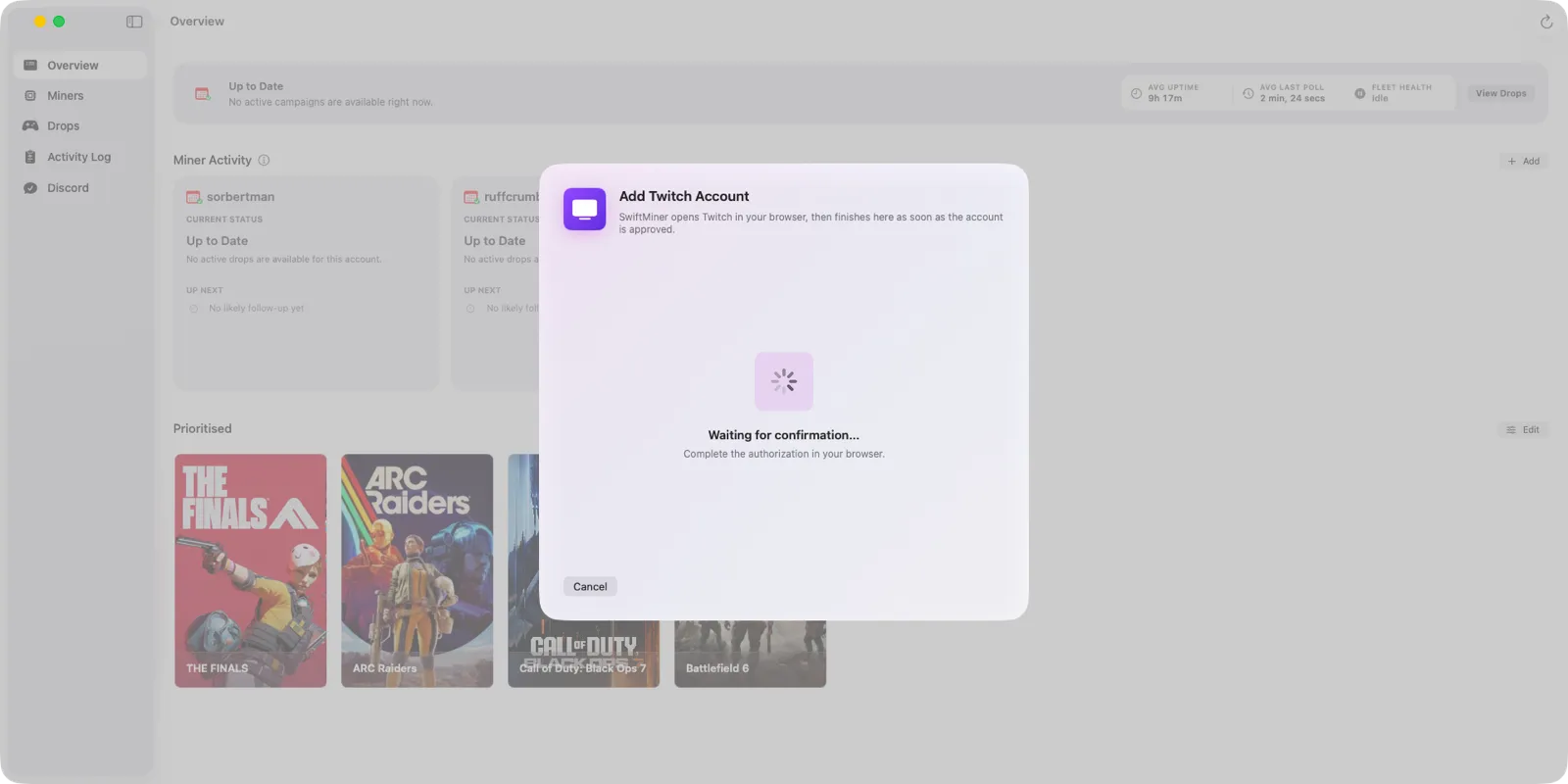

-
Start the linking process:
Click the Add Account button located in the sidebar or in the settings panel (accessible via ⌘,).
-
Generate login code:
SwiftMiner will display a Twitch Device Activation flow, showing an 8-character activation code.
-
Authorize on Twitch:
Open your web browser and navigate to twitch.tv/activate. Make sure you are signed in to the Twitch account you wish to link. Enter the 8-character code displayed in SwiftMiner, and click Authorize.
-
Wait for confirmation:
SwiftMiner will automatically detect the authorization. Once complete, your miner will initialize and start scanning for active Drops campaigns in the background.
You can repeat this process to add multiple Twitch accounts. Each miner runs completely independently, maintaining its own viewing session, claim log, and stream switching logic.