SwiftMiner uses the Sparkle update framework to check its signed update feed, download new versions, and replace the app safely. Automatic updates are recommended for a miner that may run for long periods without being opened directly.
The automatic update prompt
During initial setup, SwiftMiner asks whether it may check for updates automatically. The prompt also includes Automatically download and install updates, which is selected by default.
- Check Automatically: Enables scheduled background checks. Leave the automatic download option selected for unattended updates.
- Don’t Check: Disables background checks. You can still choose Check for Updates… from the SwiftMiner menu.
Your choice is saved. You can change it later in SwiftMiner > Settings > Updates.
What unattended updates do
When unattended updates are enabled, SwiftMiner can download an eligible update in the background and install it without requiring the normal update window. SwiftMiner relaunches after installation so mining can resume.
The Updates settings also control when a downloaded update is installed:
- Immediately: Install and relaunch as soon as the download is ready.
- When idle: Prefer a point when no miner is actively earning progress.
- Scheduled: Wait for the selected installation time.
If an update needs user attention or macOS authorization, Sparkle shows a prompt instead of completing it silently.
macOS App Management permission
macOS may ask whether SwiftMiner can update or delete other applications. This is the system’s App Management permission and allows Sparkle’s updater to replace the installed copy of SwiftMiner.
If you want unattended installation, allow this request. You can review or change it later in System Settings > Privacy & Security > App Management.
If permission is denied, automatic checks and downloads can still occur, but installation may require your approval.
Change update preferences
-
Open Updates settings:
Choose SwiftMiner > Settings, then select Updates.
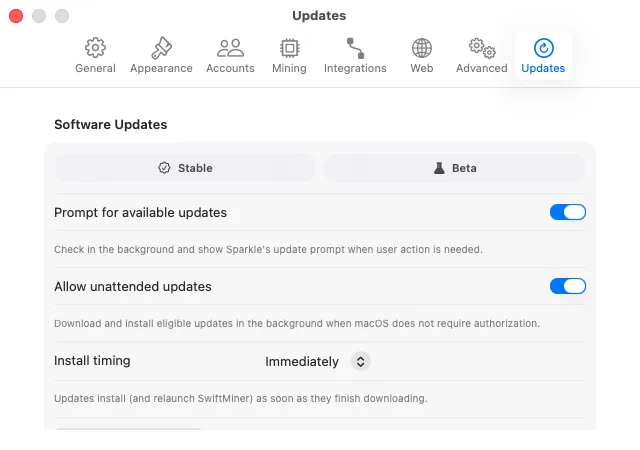 Settings › Updates controls how often SwiftMiner checks for a new release and whether it installs unattended.
 -
Choose background checking:
Use Prompt for available updates to enable or disable automatic checks.
-
Choose unattended installation:
Use Allow unattended updates, then select your preferred install timing.

Update security
SwiftMiner only accepts updates that pass Sparkle’s signature verification. Release downloads are also code-signed and notarized for macOS. If verification fails, Sparkle rejects the update rather than installing it.
If an update does not install
- Open SwiftMiner > Settings > Updates and confirm automatic checks and unattended updates are enabled.
- Check System Settings > Privacy & Security > App Management.
- Choose Check for Updates… from the SwiftMiner menu to retry interactively.
- If necessary, download the latest release manually from GitHub Releases.